
Production Targets Master View
The Production Targets view organizes all machines with real-time target completion cards: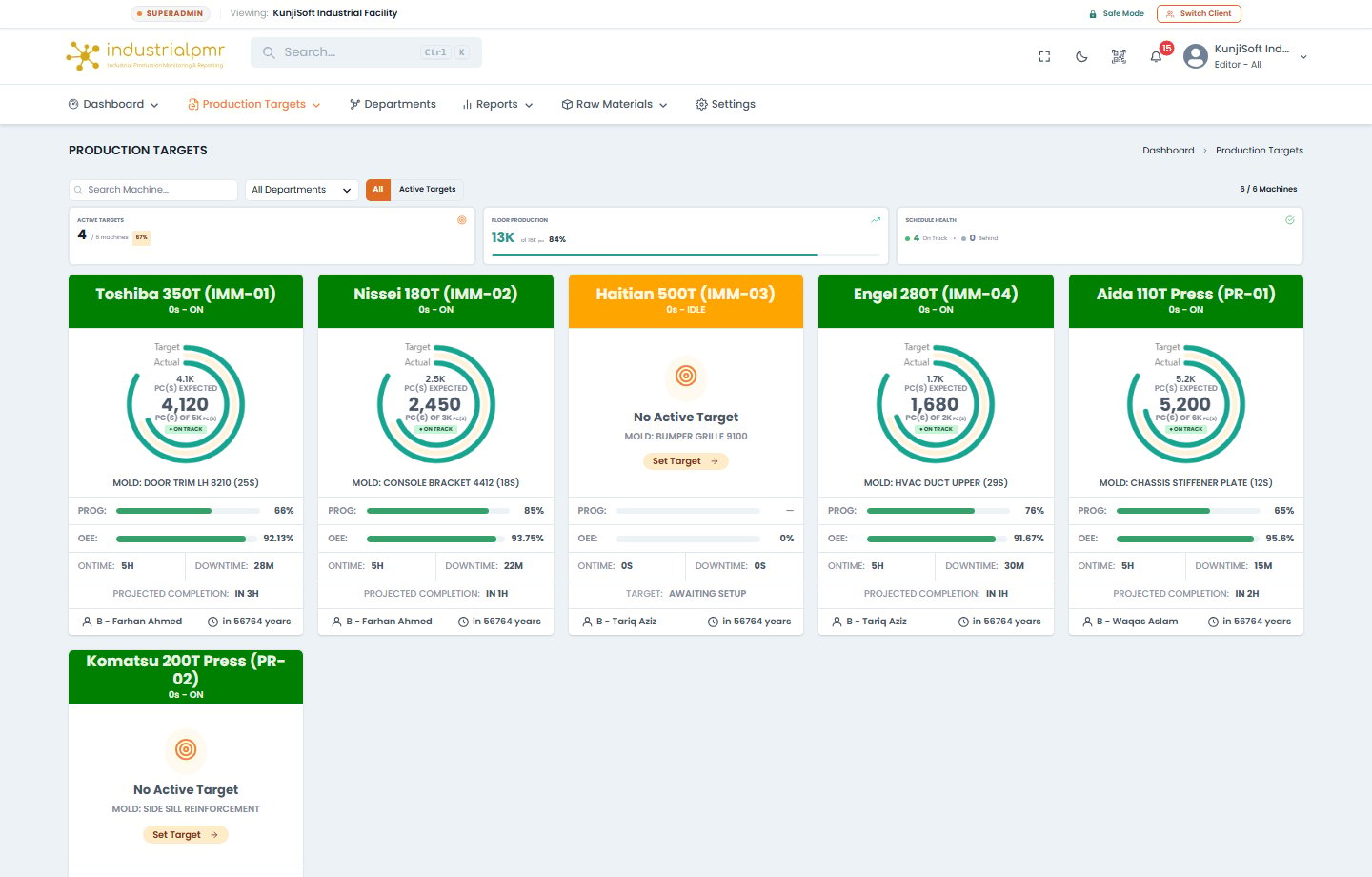
Target Card Anatomy
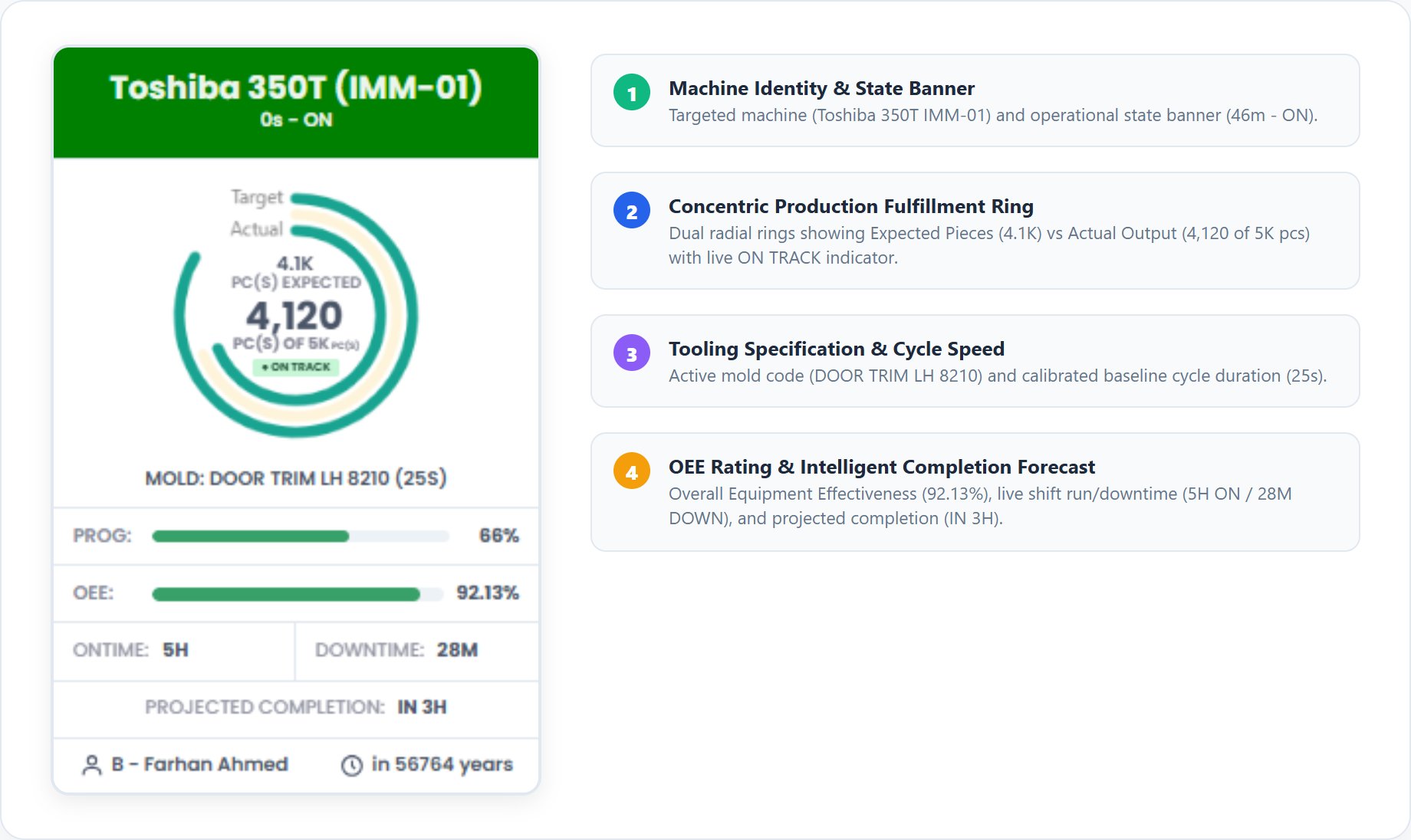
Machine Production Target & Order Management
Opening an active or pending machine target navigates to the dedicated Production Target Inspector: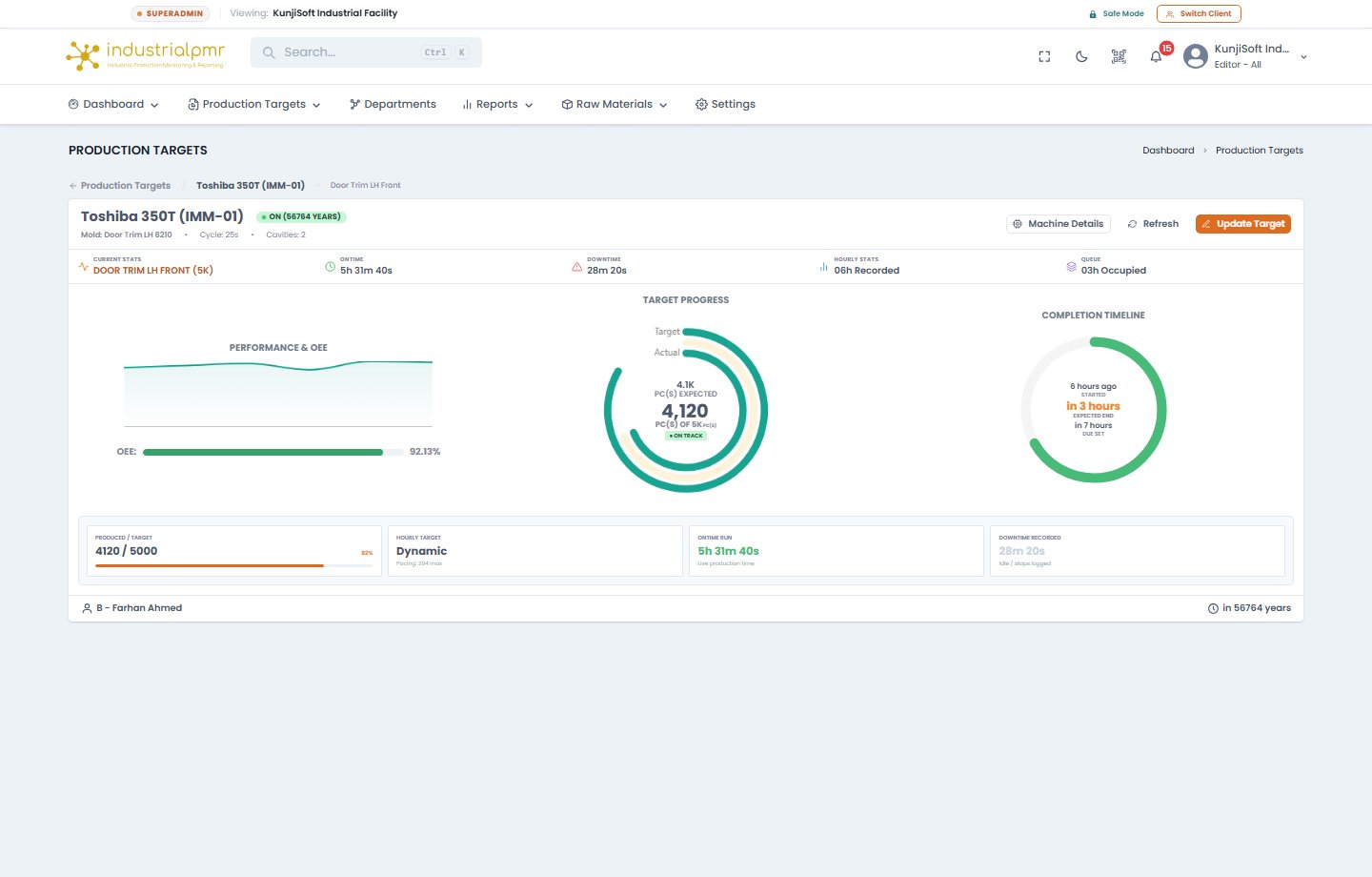
- Select Target Mode:
- Enterprise ERP Order: For integrated facilities, select an approved Production Order (PO) to automatically populate order number, material code, target piece count, and scheduled finish date.
- Custom Factory Target: For internal runs, input the target piece quota, active mold, operator name, and scheduled completion window.
- Verify Tooling & Mold Configuration:
- Confirm the installed mold profile (e.g.,
GALLON IML 6,BUCKET,PAINT GALLON). - Verify the cavity count (e.g., 1-cavity, 2-cavity, 4-cavity) and nominal cycle time (seconds).
- Confirm the installed mold profile (e.g.,
- Lock & Activate Target:
- Click Save & Activate Target.
- Industrial PMR immediately freezes baseline pulse readings and begins accumulating pieces in real time.
Targets Page Filters & Summary
Selecting a card opens/targets/:machineID.
The page refreshes itself every 30 seconds.
Filters
Summary Bar
Target Card States
- A machine without a target shows No Active Target and Awaiting Setup, with a Set Target or SAP Order action.
- A SAP badge marks a card linked to a SAP order.
- A Manual End badge marks a target that must be completed by hand (see Ending a Target).
- Cards show Prog (progress), OEE, ontime, downtime, and projected completion.
Target Detail Tabs
Target Page Header
A Target Reached badge appears when the quota is met. For SAP targets, Manual End Required appears instead until the target is completed by hand.
Current Stats Details
- Produced / Target, Hourly Target, Ontime Run (live production time), and Downtime Recorded (idle and stops logged).
- Completion Timeline shows Started, Expected End, and Due Set, or Goal Achieved once the target is reached.
- With no target, the page shows No Active Production Target with the installed mold and current OEE, and a button to set a target or import a SAP order.
- The Ontime tab shows No Runtime Logged Today until the machine sends data.
Downtime Tab
- Stops can be categorized one at a time, or several at once (bulk) with the same category, note, and Planned/Unplanned setting.
- Already categorized stops can be edited.
- Stops that began before the target started are ignored.
- A stop left open when the machine resumed is closed automatically, and duplicate records are merged.
Hourly Stats: 24h Uniform Timeline
The timeline shows every hour, including hours with no record.- Hours outside the configured shifts are marked Off Shift and count as zero downtime.
- Active Shifts Only hides the off-shift hours. The toggle appears only when the target has off-shift hours.
- The Downtime column shows the duration and the reason: a blue Planned: … badge for planned stops, red for uncategorized.
- Efficiency per hour = ontime ÷ (ontime + unplanned downtime).
- Hours that ended before the target started are excluded.
Queue
Lists upcoming targets with total occupied hours and projected end time. You can start the queue, delete an item, or change the order.Add or Update a Target
Notification types: Milestone, Due Missed, and Expected Target Missed.
With SAP enabled, an order can be chosen from the SAP order selector. See SAP integration.
The downtime categorization prompt appears when the machine is not running, the target has started, Monitor Downtime is on, and downtime records exist.
Form Behavior
- Name is required (up to 150 characters). The Mold is the one installed on the machine and is shown with its cycle time.
- Target pieces and Hourly target must each be at least 1. When a SAP order is linked, the target quantity is read-only and marked Locked to SAP.
- Max Hourly Target is the most the mold can produce in an hour: 3600 ÷ cycle time × cavities, rounded down. Click it (or Auto-fill) to use it as the hourly target.
- With Auto due date, the due date is the target pieces ÷ hourly target hours from now. If no hourly target is set, it is the expected end time plus one hour.
- A due date in the past is rejected (Due date cannot be in the past).
- The footer shows the Target, Max Hourly Target, and Expected End (cycle time × shots needed, rounded up).
- Update Target keeps the live piece count and the original start time, so updating a running target does not reset it.
- When the machine already has a target, the same form can Queue the next one. See Queue.
Ending a Target
- End Now (shown when updating an existing target) ends the target after a danger confirmation and clears the target from the machine.
- SAP targets never complete automatically. Production keeps accumulating after the quantity is reached until someone presses Complete Target. See SAP integration.
Target Lifecycle & Operational Continuity
Factory operations frequently require producing an extra buffer (e.g., 2% to 5%) to cover quality control lab sampling or downstream packaging rejects. When the quota is achieved:- The target progress badge illuminates Green (
Quota Reached). - Piece counters continue incrementing accurately without resetting.
- Only the authorized shift supervisor can trigger Close Target during shift handover.
Overall Equipment Effectiveness (OEE)
Industrial PMR computes real-time OEE across all running machines according to industry gold standards:- Availability:
- Performance:
- Quality:
Target OEE and Planned Downtime
On the target page, OEE is calculated as: Planned downtime does not reduce OEE. Mark stops as Planned in the downtime categorization dialog.Target Statistics
Target Statistics (
/targets/stats) is planned. It will offer a month-range picker and a units-produced figure. The route currently shows “Coming Soon”.Raw Materials & Inventory Tracking
Navigate to Raw Materials to monitor shop-floor material consumption and resin silo levels: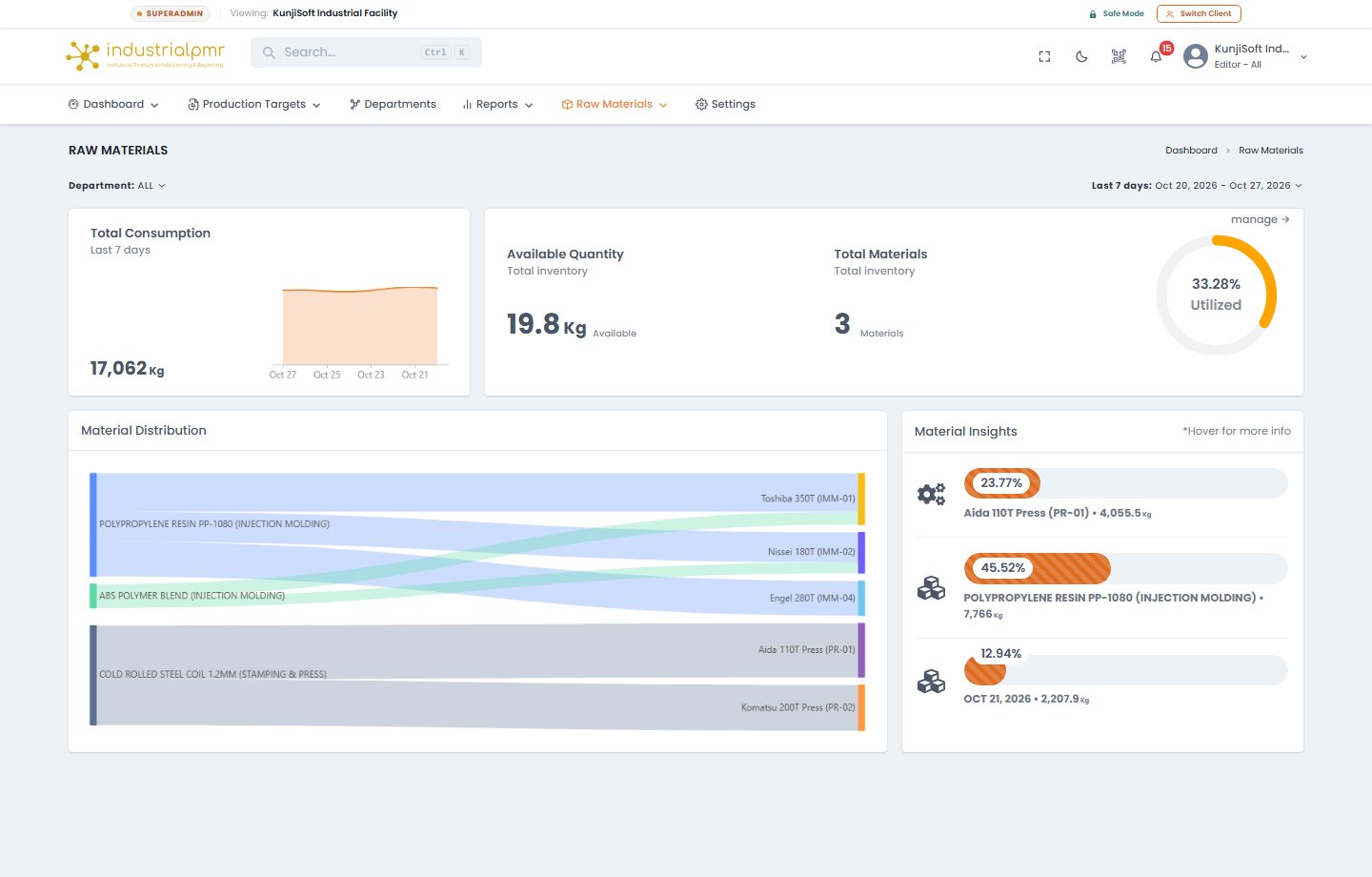
Raw Material Features
- Real-Time Consumption: Automatically calculates grams and kilograms of resin consumed based on:
- Inventory Utilization Gauge: Donut meter indicating the percentage of allocated raw material consumed against batch inventory.
- Material Distribution Breakdown: Displays consumption split across high-volume polymer grades (e.g., PP Homo-polymer, HDPE, ABS, Masterbatch additives).
- Material Management Portal (
/raw-materials/manage): Add, edit, and delete materials and track remaining stock. See below.
Raw Materials Page
The page shows total consumption, a consumption breakdown with insights, and inventory status (available quantity, total materials, and percentage utilized).Manage Inventory
Open Manage Inventory at/raw-materials/manage.
Stat Cards
Total Materials, Available Material, Consumed Material, and Negative Materials.Table, Search & Sort
- Search by name and filter by department.
- Sort by Name, Consumed, Remaining, Updated, or Last Used.
Add Material
Edit or Delete Material
- Set the quantity to a new value, or Add to the current stock.
- Materials can be deleted after confirmation.