
Signing In
Users sign in with an email address and password through Firebase Authentication.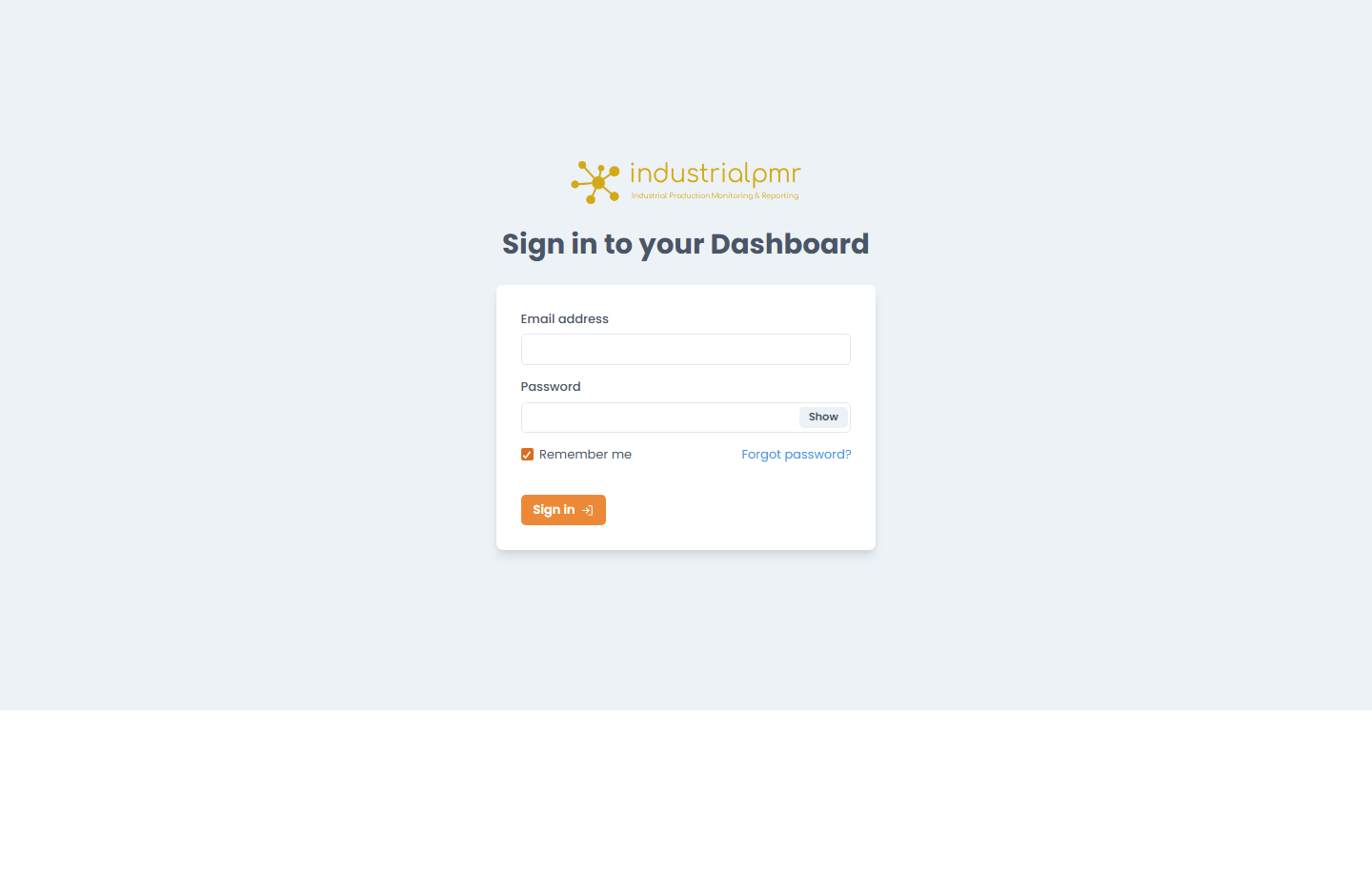
- Remember me keeps the session across browser restarts. Without it, the session ends when the browser closes.
- After a successful login, a confirmation message is shown.
- Forgot Password opens a dialog that sends a reset link to the entered email address.
Addresses on the
industrialpmr.com domain cannot be reset this way. Users with such an address are told to contact support.Roles and Visibility
Every user has a role and a department list.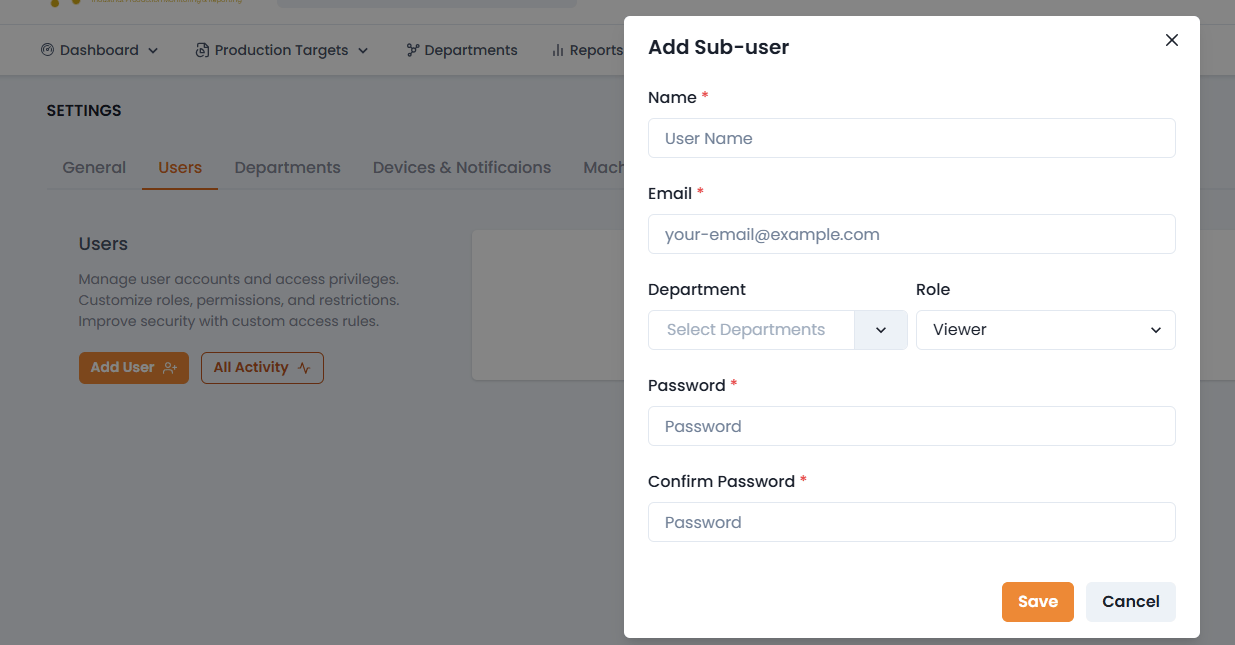
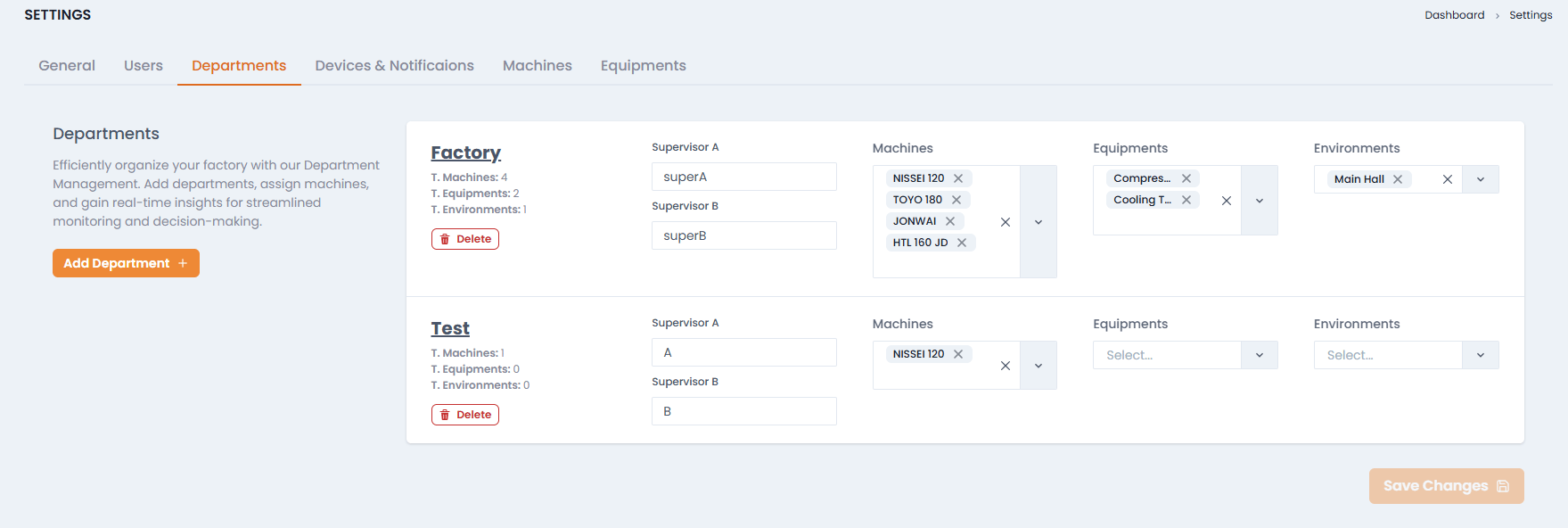
- Sub-users load their data from their master account.
- Commands sent to devices (for example, installing a mold) require the account owner, an Editor, or a master admin. Anyone else receives a Permission Denied message.
Navigation Bar
The top bar is available on every page and contains:
- A search bar
- The factory selector
- The notification bell
- A color-mode toggle (light/dark)
- A fullscreen button
- The Account menu, showing company name, role, and department
Breadcrumbs
Breadcrumbs show the path to the current page. For Machines, Equipments, and Main Electricity, the last crumb has a hover dropdown linking to the other two pages, so you can switch between them without going back to the menu.Footer, 404 and Empty States
- The footer shows the copyright line and “Designed and developed by KunjiSoft Technologies”.
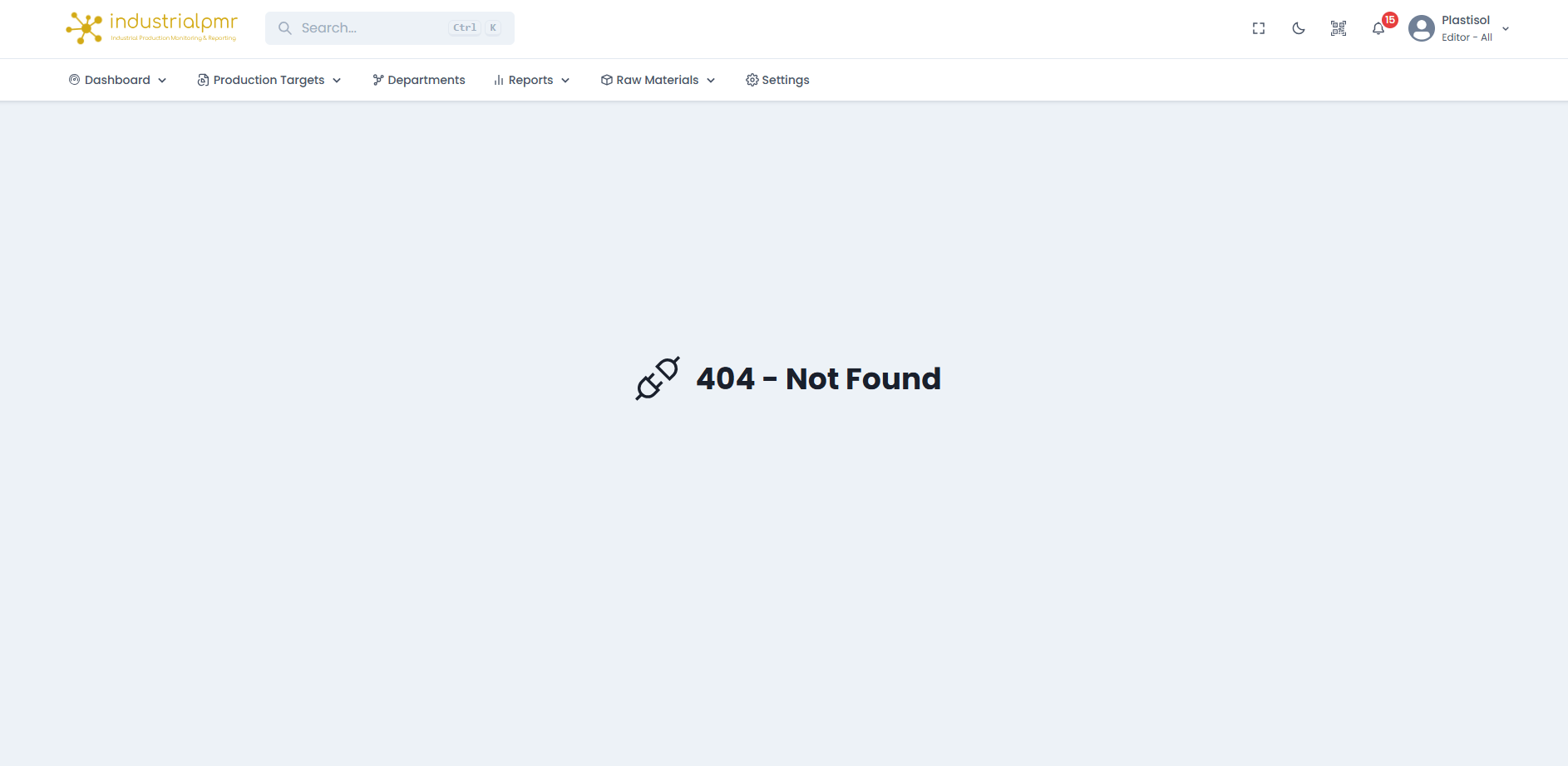
- Unknown addresses show a 404 - Not Found page.
- Pages with no data show a “No … found” or “Data not found” card.
Global Search
The Search… field in the navigation bar opens a search dialog. Press Ctrl + K from any page to open it.
- Type at least two characters. Results appear as you type, and close matches are found even with a small typo.
- Results include pages (for example Reports or Settings), machines, each machine’s Production (target) page, equipments, and environments.
- Use the up and down arrow keys to move through the results and Enter to open the highlighted one, or click a result.
Get the App
A QR button in the navigation bar opens a modal titled Get the industrialpmr app, with a QR code and links for Google Play and the App Store.
Notification Bell
The bell refreshes every 10 seconds and shows a count badge. It has four tabs: All, Errors, Alerts, and N. Alerts.Which devices receive push notifications is controlled by device categories. See Settings & Administration.